
 Connect

QR Payments: How to Pay a Bill by QR Code
QR Payments: How to Pay a Bill by QR Code
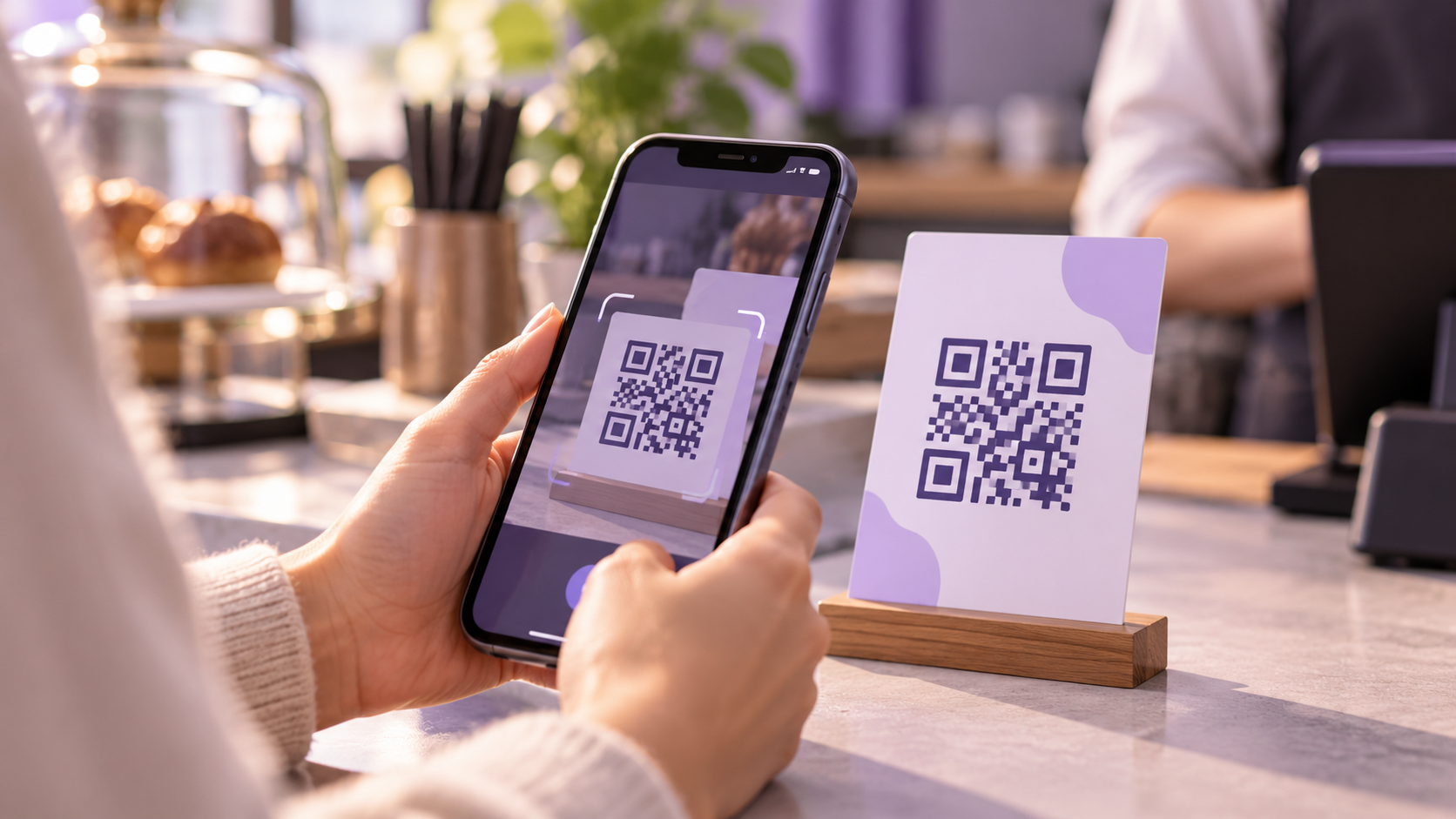
A QR code can make paying quicker. Instead of entering payment details manually, you scan the code, check the details and confirm the transfer in your payment app. QR payments can be used for bills, services and transfers between people. For businesses, a QR code can be a simple way to share payment details with customers.
How to pay a bill by QR code in FinPay
Open the “Cards” section in the FinPay app and select “Payment by QR code.”
Allow camera access and point your camera at the QR code. If the code is saved on your phone, you can select it from your gallery.
Check that the recipient’s details have been filled in correctly.
Enter the amount if it is not included in the code, and check the payment description.
Confirm the transaction.
A QR code that follows the NBU standard can share payment details so you do not have to enter them manually. Still, check the recipient, amount and payment description before confirming. These details determine where your payment goes.
How businesses can use QR codes to receive payments
A business can display a QR code containing its payment details wherever customers can easily scan it: on an invoice, at a service desk, on a menu or in a payment instruction message. The customer scans the code in a payment app, checks the details and initiates the transfer.
This type of QR code is useful when a business wants to share payment details quickly and reduce errors caused by manual entry. Depending on the payment scenario, a business can use:
A QR code with the company’s payment details — for payments where the customer enters the amount and payment description.
A QR code with details for a specific invoice — to provide the payer with more information about that particular payment.
The National Bank of Ukraine describes how businesses can create QR codes to receive funds through a credit transfer. However, a QR transfer and card acquiring are different ways to accept payments. If a business needs to accept card payments on a website or through another digital checkout, it should check the payment provider’s available solutions and connection terms separately.
How paying by QR code differs from entering payment details manually
When entering payment details manually, the customer copies them from a bill or message into a payment form. With a QR code, some of the information is scanned and filled in automatically. This reduces manual steps, but you should still check the details before paying.
Scanning a QR code does not complete the payment by itself. You still need to review the details and confirm the transaction. Save the receipt or payment confirmation so you can check the transaction or contact the recipient if a question comes up.
How to pay safely by QR code
Scan codes provided by a business or service provider you recognize.
After scanning, check the recipient’s name, amount and payment description.
Do not confirm the payment if the details do not match the bill.
Never share one-time confirmation codes, your PIN or your full card details with anyone.
With FinPay, you can scan a QR code with your phone’s camera or select one from your gallery, check the payment details filled in automatically and confirm the transaction in the app.